
Mastering Audio in Adobe After Effects: A Comprehensive Guide for Motion Designers
While Adobe After Effects is primarily revered as the industry standard for motion graphics, visual effects, and compositing, it is rarely the first software a professional reaches for when performing complex audio engineering. However, for motion designers and video editors, the ability to manipulate sound directly within the workspace is an essential skill. Whether you are syncing complex animation to a musical beat or applying subtle sound effects to a title sequence, mastering the audio environment in After Effects can significantly streamline your production pipeline.
This guide explores the essential techniques, panels, and workflows required to manage audio effectively within After Effects, ensuring your sound design is as polished as your visual output.
The Role of Audio in a Visual-First Environment
Main Facts and Functional Realities
In a professional post-production workflow, audio is often treated as a secondary priority within After Effects. The software’s architecture is built to handle heavy pixel processing, and as such, it does not possess the granular multi-track mixing capabilities of Adobe Audition or the sophisticated sequence management of Adobe Premiere Pro.
However, the core reality is that you will inevitably encounter situations where "round-tripping" between software is inefficient. Understanding how to manage audio levels, visualize waveforms, and utilize the built-in "Convert Audio to Keyframes" function allows for tighter integration between sound and motion. The primary goal when working with audio in After Effects is not to perform a final mix, but to ensure that the visual elements remain perfectly synchronized with the auditory components of your project.

Chronology of an Audio Workflow in After Effects
To work efficiently, a motion designer should follow a logical sequence of operations when importing and manipulating sound files.
1. Panel Configuration
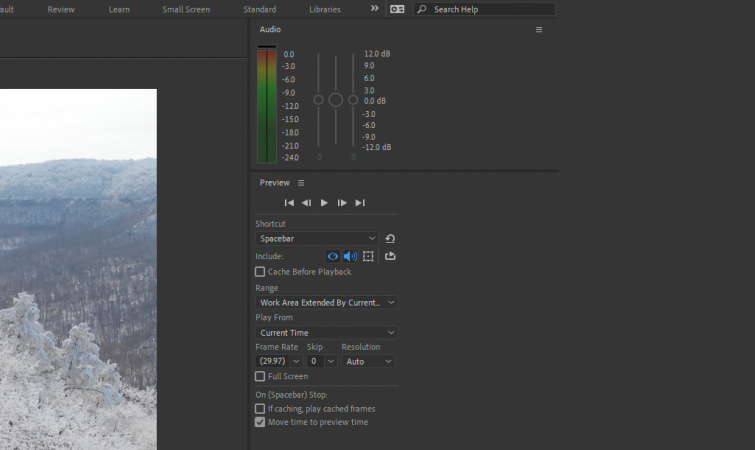
Before importing audio, ensure your workspace is prepared. Navigate to Window > Audio to open the Audio panel, which provides visual feedback on playback levels. Simultaneously, ensure the Preview panel is visible (Window > Preview). This is your command center for managing how and when audio is rendered during your workspace playback.
2. Importing and Layer Management
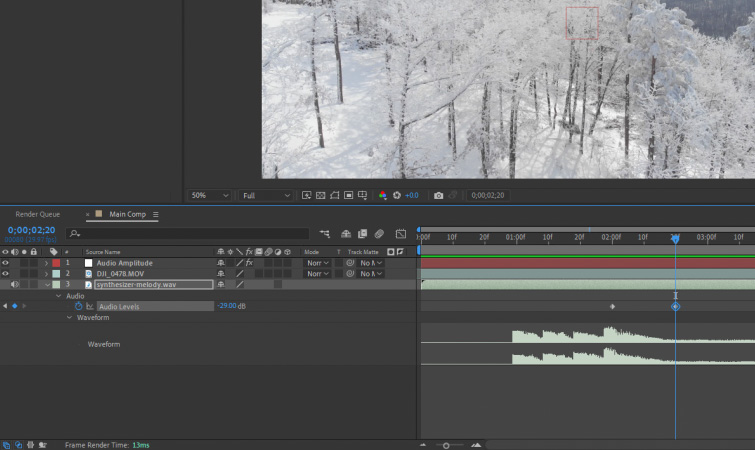
Once your audio file is imported into your project, dragging it into the composition creates an audio layer. Much like video layers, you can toggle the speaker icon to mute or solo the track. By clicking the arrow to the left of the layer name, you can expand the properties to reveal Audio Levels and the Waveform.
3. The "L-Key" Technique
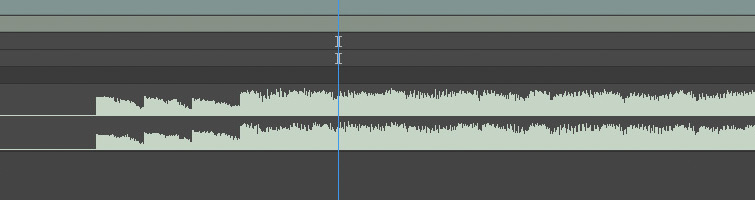
One of the most useful habits for any animator is the "L-L" shortcut. By selecting your audio layer and pressing the ‘L’ key twice in rapid succession, After Effects instantly displays the waveform. Relying on this visual representation is critical because, unlike a dedicated Digital Audio Workstation (DAW), After Effects often experiences latency during playback. Attempting to time your animations by "ear" alone is a common mistake that leads to sync issues.
4. Keyframing for Dynamics
For simple fades, you can animate the Audio Levels property. By setting keyframes at the beginning and end of a clip, you can control the gain, creating professional-grade fades that prevent harsh audio cuts.
Supporting Data: Efficiency and Precision
Understanding Playback Shortcuts
Professional efficiency relies on muscle memory. After Effects offers specific keyboard shortcuts designed to isolate audio needs:
- Spacebar: Standard preview. Always verify that audio is enabled in the Preview panel settings.
- 0 (Numpad): Executes a RAM Preview. This is the gold standard for testing sync, as it forces the software to cache both audio and video frames.
- Decimal point (.) (Numpad): This initiates an "Audio Only" preview. This is an invaluable tool when you need to focus entirely on the rhythm of a piece without the distraction of moving graphics.
The Delay Dilemma
As noted by veteran motion designers, the audio playback engine in After Effects is susceptible to slight delays, particularly in heavy compositions. This is why "working to the waveform" is not just a stylistic preference—it is a technical necessity. When the audio is converted into visual data (the waveform), it becomes immutable. By placing your keyframes at the peaks of the waveform, you guarantee that your animation will hit the beat perfectly, regardless of any potential playback lag during the render process.
Official Perspectives and Industry Standards
While Adobe provides these tools, the consensus among professionals is that After Effects should serve as a host for sound, not an editor.
"In most cases," industry experts suggest, "I would recommend using a better-suited audio program like Adobe Audition or Premiere Pro for the bulk of your sound design." The tools available in After Effects—such as the Bass & Treble, Reverb, and Stereo Mixer effects found under Effects > Audio—are best reserved for "in a pinch" scenarios. If your project requires complex EQ, noise reduction, or multi-track mastering, these tasks should be completed in a dedicated audio environment before importing the final mix into After Effects.
Advanced Implications: Converting Audio to Keyframes
Perhaps the most powerful feature in the After Effects audio toolkit is the ability to transform sound into motion data.
The "Convert Audio to Keyframes" Process
If you want your graphics to react to the beat of a song, you do not need to animate manually. By right-clicking your audio layer and selecting Keyframe Assistant > Convert Audio to Keyframes, you generate a "Null Object" layer named Audio Amplitude.
This Null Object contains three sliders: Left Channel, Right Channel, and Both Channels. These sliders contain keyframes representing the decibel levels of your audio track throughout the entire duration of the clip.
Practical Application
Once these keyframes are generated, you can use Pick Whips to link any property—such as scale, opacity, or rotation—to these audio sliders. This creates a procedural animation where your visual assets pulse, shake, or strobe in perfect synchronization with the audio. This technique is a cornerstone of modern music video production and motion-based branding.
Strategic Recommendations for Sound Design
To elevate your projects, consider these best practices:
- Prioritize High-Quality Assets: No amount of software manipulation can fix a poor-quality recording. Utilize high-quality, royalty-free libraries to source your sound effects. Resources like the Epic Free Sound Effects for Film & Video Trailers collection provide the cinematic impact required for modern digital content.
- Organization is Key: Keep your audio files in a dedicated folder within your project panel. When projects grow, audio layers can easily get lost among dozens of visual layers. Color-code your audio layers to differentiate them from your visual elements.
- The "Final Pass" Philosophy: Perform your final audio mix at the very end of your project. After your visual keyframes are locked, revisit your audio levels to ensure the soundscape complements the visual journey.
Conclusion
Working with audio in After Effects requires a shift in mindset. It is not about turning the software into a recording studio, but rather about leveraging its powerful synchronization tools to bridge the gap between sight and sound. By mastering the audio panels, utilizing waveform visualization, and exploiting the "Convert Audio to Keyframes" feature, you can ensure that your motion graphics do not just move—they perform.
While the software may have its limitations, the creative potential unlocked by tight audio-visual integration is immense. Whether you are building a title sequence for a feature film or a dynamic social media animation, a disciplined approach to your audio workflow will always result in a more professional, engaging, and impactful final product.
