
Beyond the Desktop: Mastering Windows 11 Automation with Task Scheduler
For many Windows 11 users, the operating system is a workspace that requires constant manual intervention. Whether it’s clearing out temporary files, launching specific productivity suites, or keeping third-party software updated, the daily "PC routine" can become a drain on time and mental energy. While many turn to flashy third-party software or complex scripting environments, the most powerful tool for automation has been hiding in plain sight for decades: the Windows Task Scheduler.
Despite its aging, utilitarian interface that feels like a relic of the Windows XP era, Task Scheduler remains a powerhouse of internal automation. By moving beyond its "Basic" settings and tapping into its granular triggers and conditions, users can transform their PC into a self-managing machine.
The Core Mechanics: Understanding Task Scheduler
At its simplest level, Task Scheduler acts as a gatekeeper. It monitors the system for a specific "trigger"—a predefined event such as a time of day, a user login, system startup, or a specific system error—and executes a command or script when that trigger fires.
While it is not a performance-boosting tool in the sense of overclocking your CPU, Task Scheduler acts as a "workflow optimizer." It relieves the user of repetitive manual labor, manages resource-heavy startup processes, and handles background maintenance while the user is focused on more critical tasks.
The "Create Task" vs. "Create Basic Task" Distinction
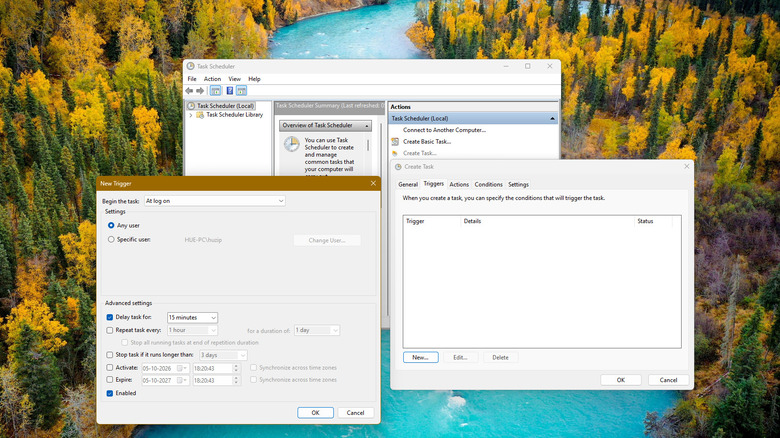
A common pitfall for beginners is selecting the "Create Basic Task" wizard. While approachable, it is severely limited. To truly "supercharge" your machine, users must select the "Create Task" option in the Actions pane. This opens the full suite of controls, including:
- Security Options: Determining whether the task runs only when the user is logged on or even when they are not.
- Triggers: Fine-tuning the "when" with precision (e.g., repeating tasks every five minutes or waiting for a specific network connection).
- Conditions: Dictating that a task should only run if the PC is idle, connected to AC power, or if the network is active.
- Settings: Defining behaviors if the task fails or if it runs longer than expected.
Chronology of an Automation Workflow
Understanding the lifecycle of an automated task is crucial for stability. When you configure a task, it follows a specific sequence of operations:
- Event Detection: The Task Scheduler service constantly polls system events and internal clocks.
- Condition Validation: Once a trigger is hit, the system verifies the conditions. For instance, if you have set a script to run only when the PC is idle, the scheduler checks if there has been no user input for the defined duration.
- Execution: The task launches. This can be a simple application launch, a complex PowerShell script, or a batch file.
- Reporting: The Task Scheduler logs the result, recording whether the process completed successfully or if it exited with a specific error code.
This architecture ensures that you aren’t just setting a command to run; you are creating a "smart" process that respects the current state of your hardware.
Supporting Data: Efficiency and System Health
Microsoft has long documented the impact of background processes on system health. According to technical documentation regarding the Windows Task Scheduler, poorly configured tasks can prevent a computer from entering its low-power idle state.
For laptop users, this is a significant concern. A task configured to poll the system every five minutes will effectively prevent the CPU from downclocking or entering deep sleep modes, significantly impacting battery life. Therefore, the "Conditions" tab in Task Scheduler is not just for convenience—it is a critical tool for power management. By leveraging "Idle" or "Maintenance" triggers, users can ensure that their automation does not cannibalize the performance of their active workflows.
Best Practices for System Integrity
- Avoid Excessive Privileges: The "Run with highest privileges" checkbox should be used sparingly. Granting administrative rights to automated scripts increases the attack surface of your system should a script become compromised.
- Resource Throttling: If a script is resource-intensive, ensure it is set to run only when the PC is idle.
- Centralized Logging: If a task fails, Task Scheduler provides an "History" tab (which may need to be manually enabled via the right-hand pane) that is invaluable for debugging.
Practical Applications: Three Automations Worth Implementing
1. Automating Software Maintenance with WinGet
The Windows Package Manager (WinGet) is a powerful, underutilized command-line tool. You can automate the updating of all your installed software by creating a weekly task.
The Command:
winget upgrade --all --silent --accept-package-agreements --accept-source-agreements --disable-interactivity
By scheduling this to run once a week—ideally during a period where you are usually at lunch or away from the desk—you ensure that your apps are always patched without ever seeing a single update prompt.
2. The "Staggered" Startup Strategy
One of the most common causes of a sluggish boot time is the "startup frenzy," where every app (Discord, Spotify, Cloud Storage, Browser) tries to launch the second the desktop appears.
By disabling these apps from the official "Startup" folder in Task Manager and instead creating Task Scheduler events with a "At Log on" trigger—and adding a "Delay task for" setting—you can prioritize system resources. Set your essential services to start at login, and delay your secondary applications by three to five minutes. Your PC will feel significantly snappier immediately after reaching the desktop.
3. Housekeeping Scripts
If you have a folder of "Downloads" or "Temp" files that constantly clutter your system, a simple PowerShell script can move or delete files older than 30 days. When linked to a Task Scheduler trigger that runs once a month, you effectively automate your own digital hygiene.
Official Perspectives and Alternatives
Microsoft’s stance on automation has evolved. While Task Scheduler remains the "backbone" for system-level, silent automation, the company is pushing Power Automate for desktop for tasks that require interaction with graphical user interfaces.
Power Automate vs. Task Scheduler
- Task Scheduler is best for "headless" operations: running scripts, launching background services, and system maintenance.
- Power Automate is superior for "UI-heavy" operations: clicking buttons in a legacy app, scraping data from a website, or moving files between cloud services.
However, Microsoft notes that Power Automate for desktop often requires more overhead and, in some enterprise scenarios, paid licensing. For the individual user, Task Scheduler is free, lightweight, and requires no additional software installations.
Implications for the Power User
The implications of mastering Task Scheduler are twofold. First, it offers a level of control over the Windows environment that is rarely utilized by the average consumer. It shifts the user from being a passive recipient of Windows behavior to an active architect of their own digital environment.
Second, it highlights a broader trend in computing: while operating systems become more "locked down" and simplified, the underlying tools for customization remain available for those willing to look past the surface. As Windows 11 continues to evolve, the gray, unglamorous menus of the Task Scheduler remain a testament to the power of the command line and the efficiency of well-placed automation.
By spending just an hour setting up these triggers, users can reclaim hundreds of hours per year previously spent on mundane, repetitive maintenance tasks. In the modern era of computing, the most "advanced" feature on your PC might just be the one that works silently in the background, exactly when you told it to.
