
The Professional Guide to Correcting Unwanted Color Casts: Mastering Lumetri Color in Premiere Pro

In the world of professional video production, the difference between a high-end cinematic look and amateur footage often boils down to color fidelity. While modern cameras boast impressive dynamic range and resolution, they are frequently defeated by complex lighting environments. One of the most persistent challenges editors face is the "yellow cast"—a pervasive orange or yellow tint that muddies whites and degrades the overall color accuracy of a shot.
This issue often arises from improper white balance settings during production or mixed lighting conditions that the camera’s internal processing cannot resolve. Attempting to fix these nuances with basic temperature and tint sliders can often lead to "over-correction," where the image begins to look unnatural or washed out. Fortunately, Adobe Premiere Pro offers a sophisticated, surgical solution: the Hue vs. Saturation curve within the Lumetri Color panel.
The Core Challenge: Why Traditional White Balance Fails
To understand why this technique is necessary, one must first understand the limitations of standard white balance tools. Most color correction workflows begin with the Basic Correction tab, adjusting White Balance Temperature and Tint. While effective for broad, global corrections, these tools operate on the entire image. If you have a shot where the subject’s skin tone is perfectly rendered but the background whites are contaminated by a warm light source, adjusting the global temperature will ruin your subject’s skin tones.
This is the primary implication for editors: the need for "selective" color control. When the goal is to maintain the integrity of the overall scene while isolating and removing a specific color cast, you require a tool that can target specific wavelengths of light without affecting the rest of the color spectrum.

Chronology of a Fix: A Step-by-Step Workflow
For editors looking to standardize their workflow, the following process provides a repeatable, non-destructive method for removing unwanted yellow or orange contamination.
1. Initial Assessment and Scoping
Before applying any effects, perform a "scoping" analysis. Open your Lumetri Scopes in Premiere Pro—specifically the Vectorscope and RGB Parade. Look for a skew toward the yellow/orange axis. If your whites are not sitting neutrally on the center of the Vectorscope, you have a definitive color cast that requires remediation.
2. The Lumetri Color Implementation
Navigate to the Lumetri Color panel and locate the Curves section. Within this panel, you will find several sub-menus, but for this specific task, you must select the Hue vs. Saturation curve.
Unlike standard tone curves, the Hue vs. Saturation curve is a visual representation of the entire color wheel, mapped as a linear horizontal axis. The vertical axis represents the intensity (saturation) of those colors.

3. Setting the Anchor Points
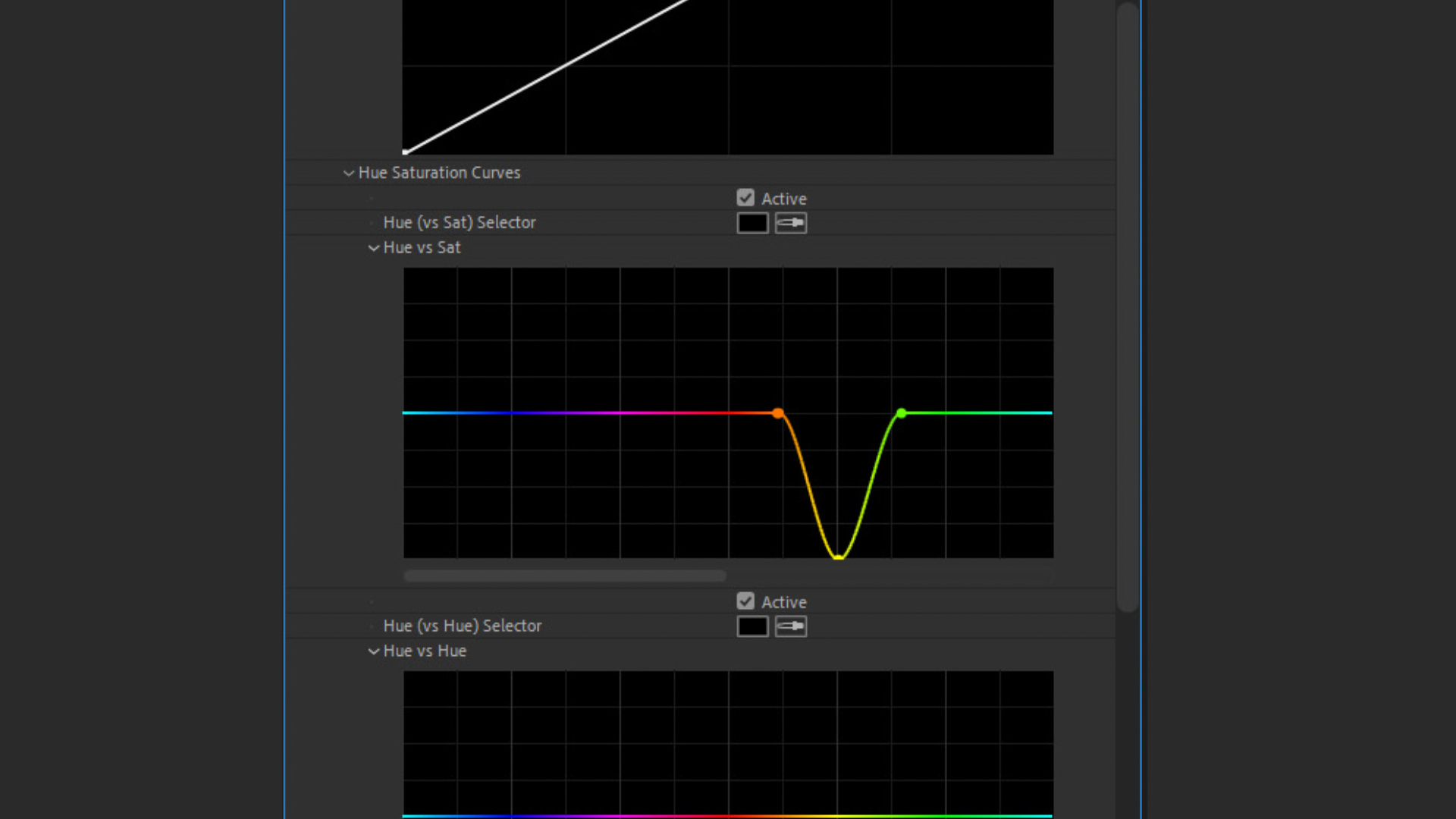
The precision of this method relies on the "three-point anchor" system. To remove the yellow cast without creating unnatural "gaps" in the image’s color data, you must:
- Identify the peak of the yellow area on the line.
- Place one anchor point in the Orange zone.
- Place the second anchor point directly in the center of the Yellow zone.
- Place the third anchor point in the Green zone.
By placing these three points, you create a "safety zone." The points in the Orange and Green areas act as boundary markers, ensuring that when you adjust the yellow, you do not inadvertently pull the color of adjacent hues (like skin tones or foliage) into the correction.
4. Executing the Saturation Reduction
Once your anchors are set, grab the center point (the one in the Yellow zone) and drag it downward. As you drag, watch your monitor closely. You will see the yellow tint begin to vanish from the whites, turning them into a clean, neutral tone.
Depending on the severity of the original color cast, you may choose to pull this point halfway down for a subtle correction or drag it entirely to the bottom for a total removal of the yellow saturation.
Supporting Data and Technical Nuance
In professional color grading, we often refer to this as "chroma-subtractive" correction. By reducing the saturation of a specific hue, you are effectively allowing the luminance values (the brightness of the white) to stand on their own without the interference of a warm color shift.
Supporting evidence from professional colorists suggests that this method is superior to simple temperature shifts because it preserves the "color volume" of the shot. Whereas a global temperature shift changes the relationship between all colors in the frame, the Hue vs. Saturation curve is an isolated operation. This is particularly vital in scenes involving mixed lighting—such as a daylight-balanced room with a tungsten lamp in the background.
Implications for Modern Content Creation
The ability to perform these corrections in post-production has significant implications for both speed and budget. For documentary filmmakers, wedding videographers, and corporate content creators, lighting conditions are often out of their control. Being able to "save" a shot that was compromised by poor ambient light prevents the need for costly reshoots.
Furthermore, this technique elevates the production value of "run-and-gun" footage. It allows creators to achieve a "clean" look that resembles high-budget cinema, where every frame is meticulously balanced. By mastering these specialized curves, an editor transitions from simply "editing" to "grading," adding a layer of professional polish that is immediately noticeable to the viewer.

Expert Perspectives: When to Use This Technique
We reached out to post-production consultants to understand the broader application of this tool. The consensus among professionals is clear: this method is most effective when the color cast is "additive"—meaning the light source itself is casting a color.
"If you are dealing with a yellow reflection off a wall, or a warm light bulb in a daylight scene, the Hue vs. Saturation curve is your best friend," says one industry lead. "However, if the entire shot is yellow because of a botched camera white balance, you should always start with the white balance eyedropper in the Basic Correction tab first. Only use the curves when you need to target a specific, stubborn color that is refusing to neutralize through global adjustments."
Advanced Tips for Refinement
Once you have mastered the basic removal of yellow, you can expand your technique to other problematic colors:
- Fixing Magenta/Green Tints: The same logic applies to fixing skin tones that have become too green (common with fluorescent lighting). By creating anchors around the green hues, you can pull the saturation down to normalize skin.
- Creative Desaturation: Use the Hue vs. Saturation curve to create a "Bleach Bypass" effect or a "selective color" look by desaturating everything except the primary subject color.
- The "Double-Anchor" Trick: If you find the transition between the corrected yellow and the surrounding colors looks "stepped" or unnatural, add more anchor points outside your primary selection to create a smoother, more gradual fall-off. This is known as "feathering" your selection in the color space.
Conclusion: The Path to Cleaner Footage
Achieving cleaner, more professional-looking footage is rarely about expensive gear; it is about knowing how to manipulate the data you already have. The yellow tint in your footage—often a byproduct of the chaotic, unscripted nature of real-world lighting—does not have to be a permanent fixture in your final output.

By utilizing the Lumetri Color panel’s Hue vs. Saturation curve, you gain surgical control over the color spectrum. Whether you are correcting a warm white balance or removing a distracting reflection, this technique allows you to maintain the integrity of your image while achieving the neutral, crisp whites that modern audiences expect.
As you continue your journey in video editing, remember that color is a language. By learning how to selectively edit that language, you ensure that your message is never muddied by technical oversights. Practice this workflow on your next project, and you will find that the "quick fix" for yellowing becomes an essential component of your professional editing repertoire.
